
In a world where our photos, videos, and important files live across phones, laptops, and cloud platforms, staying organized can feel overwhelming. If you’re searching for practical ways to bring order to your digital life, this guide is designed to help you take control with clarity and confidence. From streamlining photo libraries to creating simple backup systems, we’ll walk you through realistic strategies for organizing digital memories without adding stress to your routine.
This article focuses on actionable, easy-to-follow methods that align with modern lifestyles and cozy, well-curated living. We’ve explored current digital storage best practices, usability research, and real-life organization techniques to ensure the advice you’re reading is both effective and sustainable. By the end, you’ll have a clear plan to protect your most meaningful moments, reduce digital clutter, and create a system that truly works for you.
Step 1: Choose Your Digital Filing Cabinet
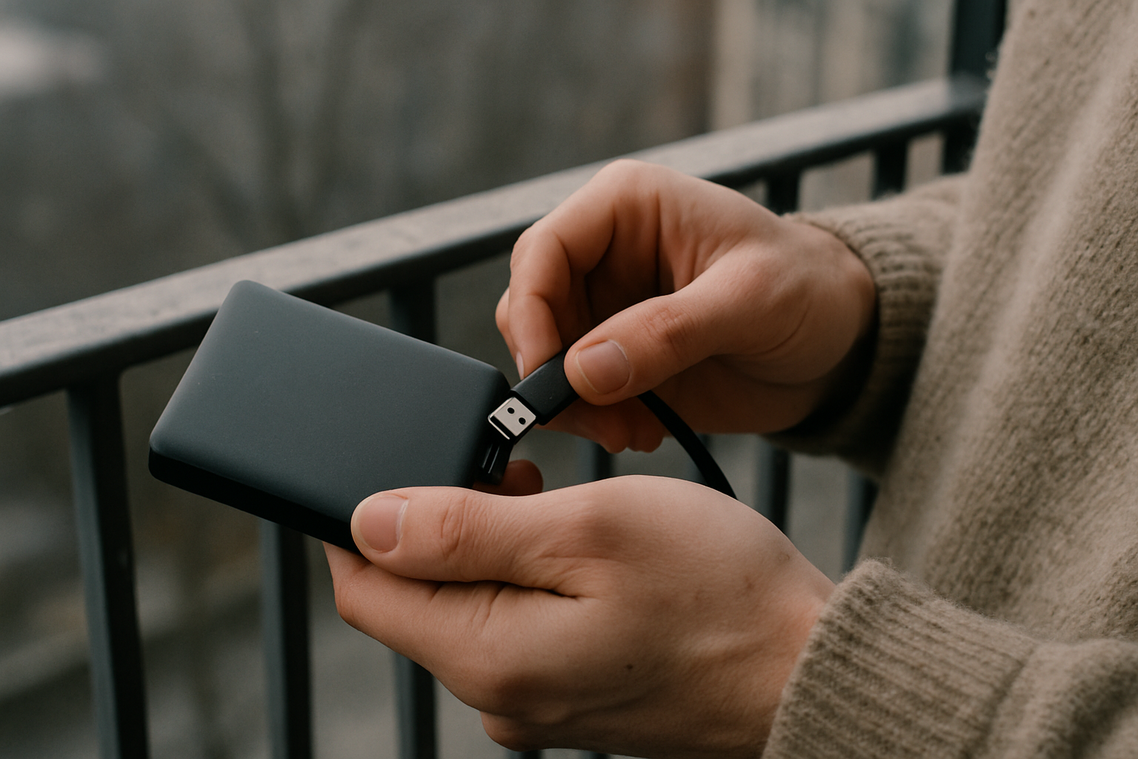
Before you start organizing digital memories, you need a single, secure “home base” for everything. Think of it as your digital filing cabinet—the central hub where files live instead of floating across devices (we’ve all texted ourselves a photo at least once).
Option A: Cloud Storage
Google Drive, iCloud, and Dropbox store files on remote servers you access via the internet. The pros? Accessibility from any device, automatic backups, and powerful search tools. As one friend told me, “I found a photo from 2017 in ten seconds—try doing that with a USB stick.” The downsides include monthly subscription costs and privacy concerns. While major providers use encryption (Google Cloud Security Overview, 2023), some users still worry about third-party access.
Option B: Local Storage
External hard drives or NAS (Network Attached Storage, a private device connected to your home network) offer a one-time cost and total control. “If it’s in my house, I trust it more,” a neighbor insisted. But hardware can fail or be damaged—and backups require discipline.
The Hybrid Recommendation
Use cloud storage for active files and an external drive for archives. Redundancy equals security. (Pro tip: schedule monthly backups—consistency beats good intentions.) For motivation, revisit why celebrating small wins boosts long term motivation: https://llbloghome.com.co/why-celebrating-small-wins-boosts-long-term-motivation/.
Step 2: Design a Simple, Future-Proof Folder Structure
Clutter doesn’t happen overnight. In fact, a study by IDC found that the average knowledge worker spends nearly 2.5 hours per day searching for information. That’s time lost to messy systems. So instead of reorganizing every few months, create a master structure that prevents chaos before it starts. The goal here is simplicity and intuition (if you have to “decode” your own folders, it’s already too complicated).
The Two Master Categories
First, create two primary folders: 01Documents and 02Photos. The numbers keep them pinned to the top of your file explorer, which reduces friction and decision fatigue. It may seem minor, but behavioral research shows small environmental cues significantly improve consistency.
Structuring “Documents”
Next, break Documents into life areas:
- Finance (Taxes, Bank Statements)
- Home (Lease, Utilities)
- Medical (Records, Insurance)
- Career (Resume, Contracts)
- Personal (IDs, Certificates)
This category-based system mirrors how your brain naturally groups responsibilities. As a result, retrieval becomes faster and more predictable.
Structuring “Photos”
When it comes to organizing digital memories, chronological order consistently outperforms thematic sorting. Use:
YEAR → YYYY-MM_EventName
Example: 2024 → 2024-07_Summer-Vacation.
Because dates don’t change, this method stays future-proof (unlike vague labels like “Misc Pics”).
The “Archive” Folder
Finally, add 03_Archive. Store inactive projects or old files here. You’ll keep your main folders clean without deleting important records. Think of it as your home’s attic—accessible, but not in the way.
Step 3: Master the Art of File Naming
I once spent 45 frantic minutes searching for a home insurance document I knew I had saved. The file name? scan_final_v2.pdf. (Past me was clearly feeling optimistic.) That was the day I realized consistent naming is a superpower.
When you name files clearly and consistently, search tools can actually work for you. Even if a file gets moved out of its folder, a strong name makes it instantly findable. Think of it as labeling leftovers properly instead of writing “food” on the container.
The Naming Formula
Use this universal structure: YYYY-MM-DD_Descriptor_Version.ext
Why it works:
- The date keeps everything automatically sorted chronologically.
- The descriptor explains what it is at a glance.
- The version prevents confusion.
For example, transform scan_final_v2.pdf into 2024-08-15_Home-Insurance-Policy_Renewal.pdf. Suddenly, no guessing required.
Photos benefit too. After a summer trip, batch-rename images like:
2024-07-10_Summer-Vacation_001.jpg
2024-07-10_Summer-Vacation_002.jpg
Most computers let you rename multiple files at once (pro tip: select all, right-click, rename).
This method makes organizing digital memories effortless. Files sort themselves by date and remain instantly understandable—even years later. And trust me, future you will be grateful.
Step 4: Use Smart Tools to Maintain Your System
A system only works if it’s easy to maintain (especially after a long workday in a fast-paced city apartment). The goal isn’t perfection—it’s frictionless upkeep.
Digitize Paper Instantly: Use mobile scanning apps like Microsoft Lens or Adobe Scan to capture mail the moment it hits your entryway console. These apps convert receipts, HOA notices, or school forms into clean, searchable PDFs. Name files consistently—think “2026-Property-Tax-Statement.pdf”—so future you isn’t squinting at “scan_4837.” Pro tip: enable automatic cloud backup so nothing gets lost during phone upgrades.
Leverage Photo Management AI: Google Photos and Apple Photos use machine learning (tech that identifies patterns in data) to recognize faces, places, even “coffee shops in Brooklyn.” It adds serious power when organizing digital memories.
The 15-Minute Tidy-Up: Once a week, process your desktop and downloads folder. Drag, drop, delete. Like taking out the trash—quick, necessary, and oddly satisfying.
As you curate your digital memories, don’t forget to nurture your garden of physical keepsakes too, where you can find inspiration in our article “Garden Advice Homenumental” to create a harmonious blend of nature and nostalgia.
Bring Your Space — and Your Memories — Back to Life
You came here looking for practical, cozy ways to make your home feel more organized, beautiful, and personal. Now you have the inspiration and simple strategies to turn cluttered rooms and scattered keepsakes into a space that truly feels like you.
Disorganization isn’t just visual noise — it creates stress, wastes time, and makes your home feel smaller than it is. When your layout flows, your décor reflects your personality, and you’re organizing digital memories alongside your physical space, everything feels lighter and more intentional.
Don’t let overwhelm keep you stuck. Start with one drawer, one corner, or one gallery wall today. Small, consistent changes create the cozy, functional home you’ve been craving.
If you’re ready for smarter space-saving ideas, personalized styling inspiration, and practical systems that actually work, explore more of our top-rated home guides and start transforming your space now. Your calmer, more beautiful home is just one step away.

 Connielanie Gibson writes the kind of everyday space-saving hacks content that people actually send to each other. Not because it's flashy or controversial, but because it's the sort of thing where you read it and immediately think of three people who need to see it. Connielanie has a talent for identifying the questions that a lot of people have but haven't quite figured out how to articulate yet — and then answering them properly.
They covers a lot of ground: Everyday Space-Saving Hacks, Curious Insights, Interior Design Inspirations and Layouts, and plenty of adjacent territory that doesn't always get treated with the same seriousness. The consistency across all of it is a certain kind of respect for the reader. Connielanie doesn't assume people are stupid, and they doesn't assume they know everything either. They writes for someone who is genuinely trying to figure something out — because that's usually who's actually reading. That assumption shapes everything from how they structures an explanation to how much background they includes before getting to the point.
Beyond the practical stuff, there's something in Connielanie's writing that reflects a real investment in the subject — not performed enthusiasm, but the kind of sustained interest that produces insight over time. They has been paying attention to everyday space-saving hacks long enough that they notices things a more casual observer would miss. That depth shows up in the work in ways that are hard to fake.
Connielanie Gibson writes the kind of everyday space-saving hacks content that people actually send to each other. Not because it's flashy or controversial, but because it's the sort of thing where you read it and immediately think of three people who need to see it. Connielanie has a talent for identifying the questions that a lot of people have but haven't quite figured out how to articulate yet — and then answering them properly.
They covers a lot of ground: Everyday Space-Saving Hacks, Curious Insights, Interior Design Inspirations and Layouts, and plenty of adjacent territory that doesn't always get treated with the same seriousness. The consistency across all of it is a certain kind of respect for the reader. Connielanie doesn't assume people are stupid, and they doesn't assume they know everything either. They writes for someone who is genuinely trying to figure something out — because that's usually who's actually reading. That assumption shapes everything from how they structures an explanation to how much background they includes before getting to the point.
Beyond the practical stuff, there's something in Connielanie's writing that reflects a real investment in the subject — not performed enthusiasm, but the kind of sustained interest that produces insight over time. They has been paying attention to everyday space-saving hacks long enough that they notices things a more casual observer would miss. That depth shows up in the work in ways that are hard to fake.